How to use MiMarcador
Guide for whoever runs the scoreboard during the match
Guide for whoever runs the scoreboard during the match
MiMarcador is the system you use to run the pitch scoreboard from your phone. Whatever you tap on the phone appears instantly on the big screen: the score, the time, goals with the player's name, cards and substitutions.
Save the control link to your phone's home screen. That way you open it with one tap instead of hunting for it every Sunday.
Setting up a match takes two minutes: pick the squad, type the opponent, choose pitch and category, and press apply. The rest is just tapping buttons during the match.
The session stays open for a month on that phone. It only asks for your password again if you log out yourself or that month passes.
Tapping the three lines in the corner opens the menu. Depending on what your club has enabled, you will see:
And if you are also a club administrator, you will see two more options:
They only appear to administrators. You do not need them to run the scoreboard on a Sunday.
If you are an administrator, all of that is explained in the administrator guide.
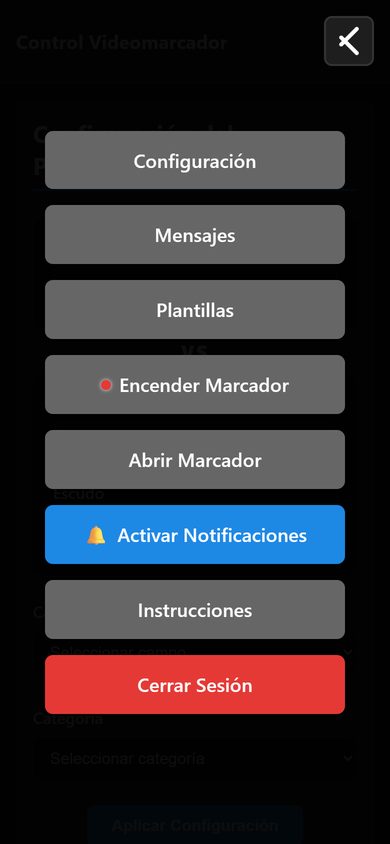
Press 🔔 Notifications once and accept the permission your phone asks for. From then on you will get two alerts, which go only to you, not to the families:
The second alert saves you from the most common slip: forgetting to end the match and leaving the pitch locked as (BUSY) for the next team.
It is the first section of the panel, Match Setup. You can fold and unfold it with the arrow so it does not get in the way during the match.
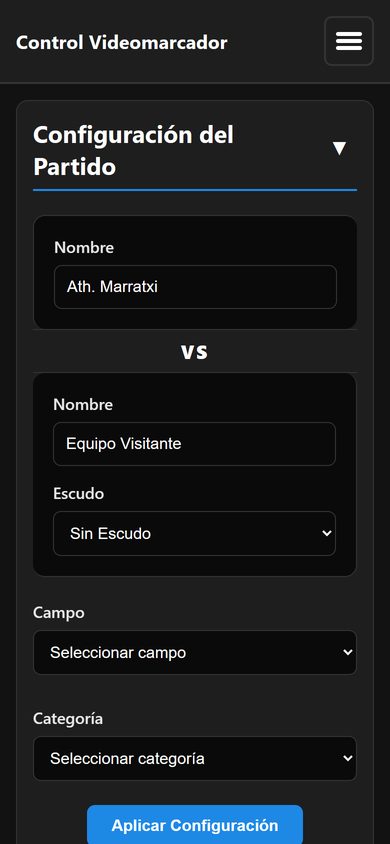
Until you choose a pitch and a category and press apply, the system will not let you change the score. If you try, it warns you with a message.
It means another match is using it right now and you cannot choose it. Wait for that match to finish, or ask whoever is running it to press End Match.
If you pick a squad instead of typing the name by hand, you will then be able to record who scores each goal, make substitutions by number, and have the player's photo appear on the big screen.
At the top you see the time and which period you are in, for example 00:00 and 1st HALF.
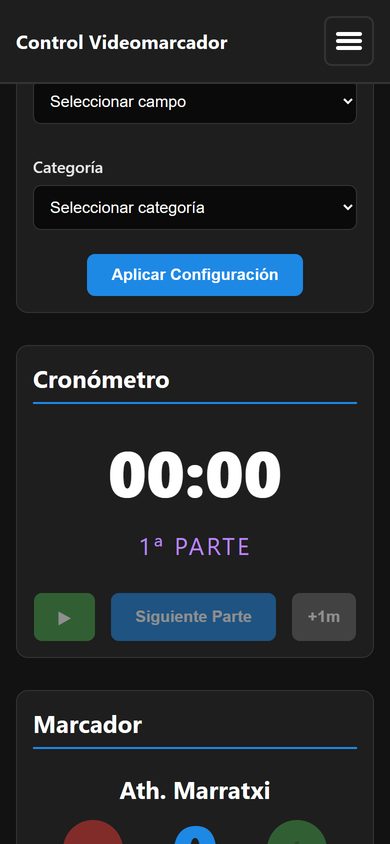
Once started, the clock runs until you press Next Period. If the referee stops play, let it run. Nor does it stop by itself when the period's time is up: it keeps counting, in red, through stoppage time.
So only press Next Period at the whistle that ends the period: the clock goes back to 00:00 and there is no button to undo it.
It does not matter if your phone screen switches off, you change apps or you lose signal for a moment: the clock keeps running. When you reopen the panel you will see the correct minute.
If the category is set to quarters instead of two halves, Next Period takes you from quarter to quarter. The screen shows it on its own.
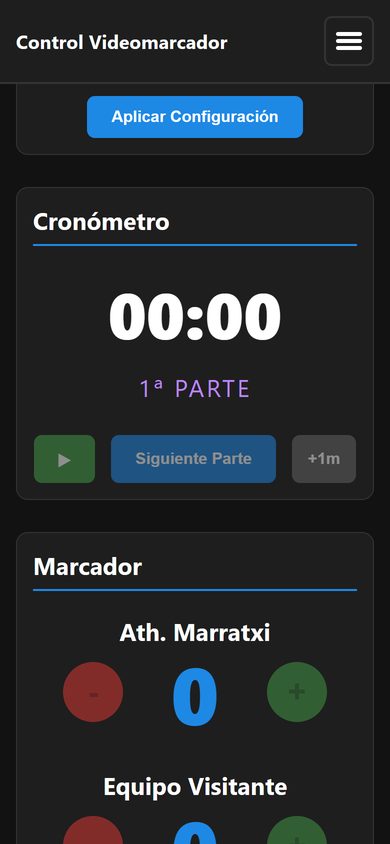
The Scoreboard section has your team on the left and the opponent on the right, each with its own buttons.
Who scored?
Choosing who scored. Your players appear with their numbers (the example names are made up).
That is what makes her name and photo appear on the screen, makes the alert to the families say who scored, and records the goal under her name in the history.
The − button removes that team's last goal. Then record it properly again with +.
Below each team's score you have the card buttons:
The card appears on the big screen with the player's name, and is recorded in the match report.
If the substitution is for your team and a squad is chosen, it works just like goals: by tapping the players.
For the opponent (or without a squad) it works as always: enter the number coming on and the number going off and press Confirm.
The Skip button in the window takes you to the classic number boxes.
They appear once the match is set up and a squad is chosen. If they are missing, go back to match setup and check that you picked squad, pitch and category.
Shows your players one by one on the big screen, with photo, number and name. It looks great right before kick-off.
The Show Line-up button only appears when all of this is true:
If your club has videos enabled, Show Line-up sits inside the Videos section, next to Play Video. If not, it appears in its own section called Line-up.
Once the clock starts running, the button disappears. That is deliberate, so it does not cover the scoreboard mid-game.
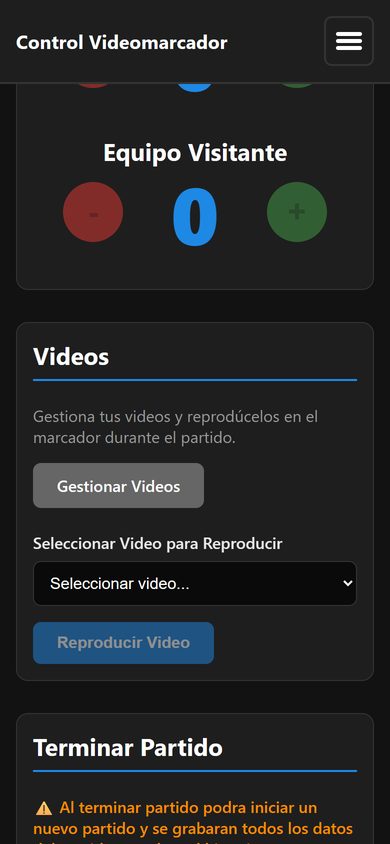
If your club has videos enabled, you can play them on the pitch screen, for example at half-time.
Manage Videos takes you to the screen where they are uploaded and deleted.
You can write a notice and put it on the pitch screen at any time, during the match or before it starts. You get there from Messages in the top menu.
It is one of the most useful things in the system and almost nobody uses it. It is for everyday situations:
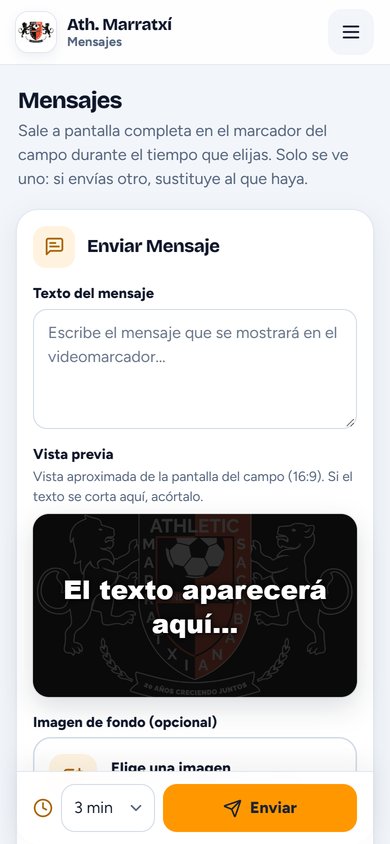
The message disappears on its own once the minutes you chose are up. If it is no longer needed, the same screen has a button to cancel it and the display returns to the scoreboard immediately.
If a goal is scored while a message is up, the animation and the player photo are skipped so the notice is not covered. The score still updates normally, and later celebrations play again as soon as the message is gone.
Two or three minutes are usually enough for everyone to read it. If you set ten, you lose the goal celebrations for that whole stretch.
The Messages option only appears to users marked as club administrators. If you do not see it in your menu, ask to be given that permission.
When the referee blows the final whistle, scroll to the last section and press End Match.
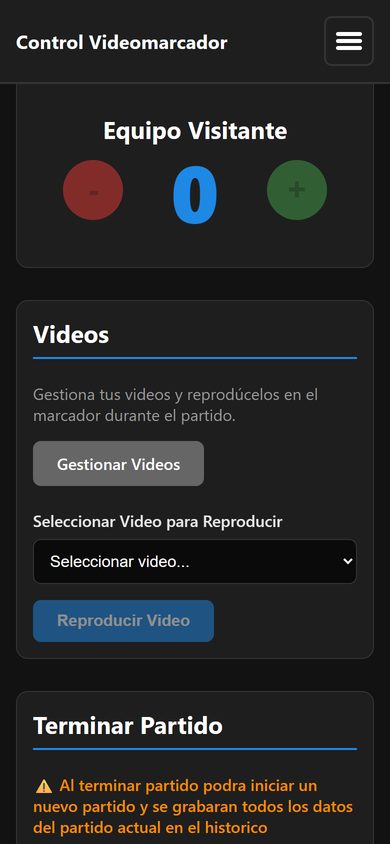
On ending, the system:
If you do not, the pitch stays marked as (BUSY) and the next team cannot use it. It is the most common slip.
You get there from Squads in the top menu. This is set up once at the start of the season, not every match.
You can import them all at once from a CSV file instead of one by one.
Each player can have two different photos, uploaded by tapping the circles next to her name:
If you only set the line-up one, it will also be used for goals. If you set neither, a generic silhouette appears in the celebration.
Any club user can upload and change their squad's photos, the same way they add or edit players.
On upload, the system shrinks them to exactly what the screen needs, so it does not matter how big the photo is.
When you pick the presentation photo, your phone removes the background and frames it like an ID photo, head and shoulders. Then it shows you the result and you decide: use it, upload it uncropped, or take another one.
What helps most is a photo of the head and shoulders, not a full-body shot from a distance. If it does not look right, take another one closer and that is it.
The cropping happens on the phone itself; nothing is sent anywhere. The first time it takes a few seconds to get ready, because it downloads what it needs; after that it is instant.
That one is shown with its background, inside a circle, and that is how it should be.
Your squad · Under-12
Each player with her two photo circles: gold for the line-up, green for goals. Above, the photos switch. (Example names.)
Uploading the photos is not enough. Each squad has its own 📷 Show photos switch in the header. If it is off, no photo appears on screen and you cannot present the team.
While you tap your phone, the pitch screen runs itself. This is what it shows.
Both team names with their crests, the score, the time and the period.
This is how the scoreboard is laid out on the pitch screen. The colours and crests are whatever your club has configured.
If your club has sponsors' ads, the screen only shows them when no match has its clock running: before kick-off, during the breaks, between matches and at the end of the day. As soon as you start the clock they go away, so they never cover a match in play.
When you record a goal for your team, two things happen in a row:
Each club configures its own goal animation, so the one you see at your pitch is yours. Which one is used is decided by whoever administers the system, and it changes nothing for you when recording the goal: you press +, pick the player, and the screen does the rest.
They also appear on screen with the player's name, and clear on their own.
Your team's substitutions get their own screen: if both players have a photo, their photos appear large over the club crest, with a green arrow for the one coming on and a red one for the one going off. If a photo is missing (or it is the opponent's substitution), the shirt numbers appear large with the same arrows.
Anyone who cannot come to the pitch can follow the match on their phone: they see the score and time live. They can also enable alerts from that same page, choosing which team and which events (goals, cards, substitutions).
The families' alerts are enabled on the live page, each on their own phone. They are separate from yours, which are enabled in the control panel and only tell you about the end of a period and closing the scoreboard.
The live page carries your club's name and crest. When there is no match it says so, and offers a button to look up the history of previous matches.
↑ Volver al índice| What you see | What to do |
|---|---|
| It will not let me change the score and a warning appears | A pitch or category is missing. Go to Match Setup, fill them in and press Apply Setup. |
| My pitch shows as (BUSY) | Another match is using it. Whoever is running it must press End Match. |
| When I record a goal it does not ask who scored | No squad is chosen for the match. Pick one in Match Setup. |
| The player photo does not appear when scoring | Check three things: the player has a photo uploaded, the squad has 📷 Show photos enabled, and you picked the player when recording the goal. |
| I do not see the Show Line-up button | It only appears with a squad chosen, Show photos enabled, in the 1st half and with the timer stopped at 00:00. |
| I sent a message and do not see it on screen | It takes a few seconds to appear. While a message is up, goal animations do not play: that is deliberate, so it is not covered. You can remove it early from the same Messages screen. |
| The pitch screen does not reflect what I tap | Force a reload of that screen (Ctrl+F5). If it stays the same, check that it has internet. |
| The screen is off | If your club has it connected, press Turn On Display in the menu. |
| The clock is out of sync | If it is behind the referee's watch, press +1m once for each minute missing. It cannot be paused or wound back: if it is ahead, let it run and move to the next period when the referee blows the whistle. |
| I do not get the end-of-period alerts | Press Notifications in the panel menu and accept the permission on your phone. Also check your phone is not muting browser alerts. |
| The families do not receive goal alerts | It is a separate subscription from yours: each person must go to the live page, enable the alerts there and accept the permission on their phone. |
| It logged me out and asks for the password | The session expired (it lasts a month). Log in again with your email and password; the match in progress is not lost. |
Write to admin@mimarcador.es telling us what you did and what you saw. If you can, attach a screenshot from your phone.